
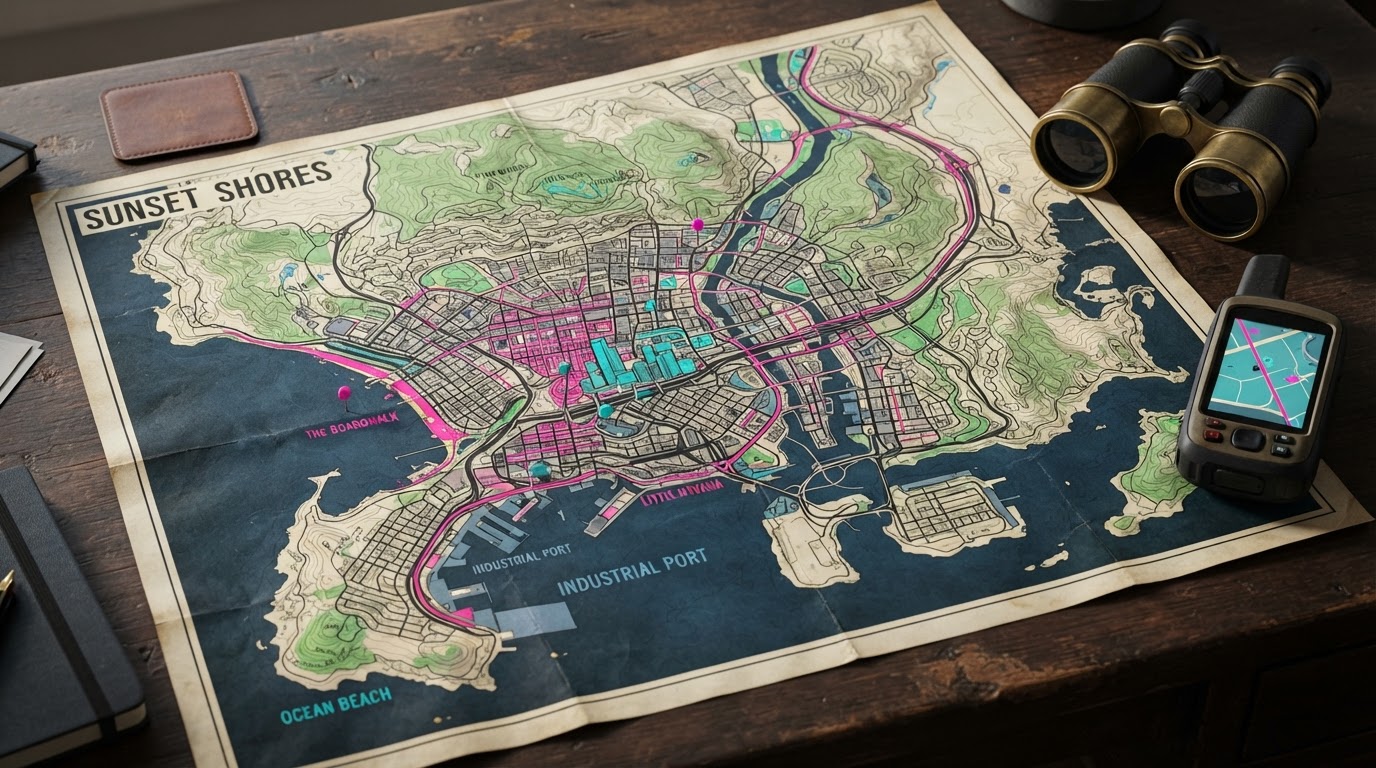
November 19: PS5 touchpad won’t open map (or keeps opening it)
The released-game default control scheme assigns Map to the PS5 DualSense touchpad and the Xbox View button. An alternate supported way to open the map is to press Options to pause and select Map from the menu. If touching the pad doesn’t open the map, inspect Settings → Control Scheme for any customized mapping and test whether the touchpad works in other games; the exact issue may be controller input rather than a GTA VI software bug.
Some November 19 players report the opposite problem: lightly grazing the touchpad opens the map unintentionally. Avoid declaring that all touchpads are nonfunctional. If you experience accidental activation, check the current control preset and avoid adjusting physical hardware or remapping the entire console without documenting the original layout. No official Rockstar touchpad sensitivity patch has been identified.
Sources: gameplay control capture, player report. Navigation map options and the map-open input are separate settings.
Quick answer: For a clear first playthrough, pick Always On if you frequently lose mission markers, Dynamic Minimap and Compass if you want direction and discovery with a cleaner screen, or Dynamic Minimap if you prefer minimal HUD clutter. The initial choice can be changed later.
What to choose or do
| Option | What it means | Practical use |
|---|---|---|
| Minimap (Dynamic) | Map appears when useful or when called; less screen clutter | Exploration-first players comfortable using the D-pad |
| Minimap and Compass (Dynamic) | Adds compass directions, personal markers and nearby points of interest | Players who want a middle ground between immersion and navigation |
| Always On | Persistent navigational information | Players learning roads, following missions or requiring a constant orientation aid |
Step-by-step guidance
- 1. Choose your preference at the game’s initial Navigation Experience prompt. It is not a difficulty setting or permanent character decision.
- 2. For dynamic navigation, the minimap can be called up with the D-pad; GamesRadar reports pressing down for temporary HUD detail. Read the on-screen prompt if your layout is remapped.
- 3. If you later want more visible guidance, open the Settings menu and review HUD/navigation options to switch individual items on or off.
- 4. During a mission, make sure the mission marker or compass is visible before driving at speed; Always On can help while learning the city.
- 5. No source reviewed here proves that one navigation style gives an in-game reward or affects your completion percentage.
Frequently asked questions
Can I change the Navigation Experience after starting?
Yes. VGC says each preset is a starting point; the Settings menu lets you adjust multiple HUD elements individually.
Is the compass a permanent part of the screen?
Not in the dynamic compass option, which is designed to appear when relevant rather than permanently.
Does Always On mean more mission markers?
It means more persistent UI display, not a different number of missions or hidden content.
Which option is best for accessibility?
Persistent navigation may be easier for someone who needs constant location feedback, but individual display and text options should be checked separately.
Related guides
Map and waypoints · Classic controls. For new players, visit our Getting Started hub.
Sources, limitations and images
Primary released-game reporting · Supporting launched-game reporting. Reviewed November 18, 2026. Steps reflect attributed published playthroughs rather than independent hands-on testing by The Leonida Scene. Featured imagery is official promotional artwork or a labeled editorial illustration; it is not an actual capture of this exact interaction.