
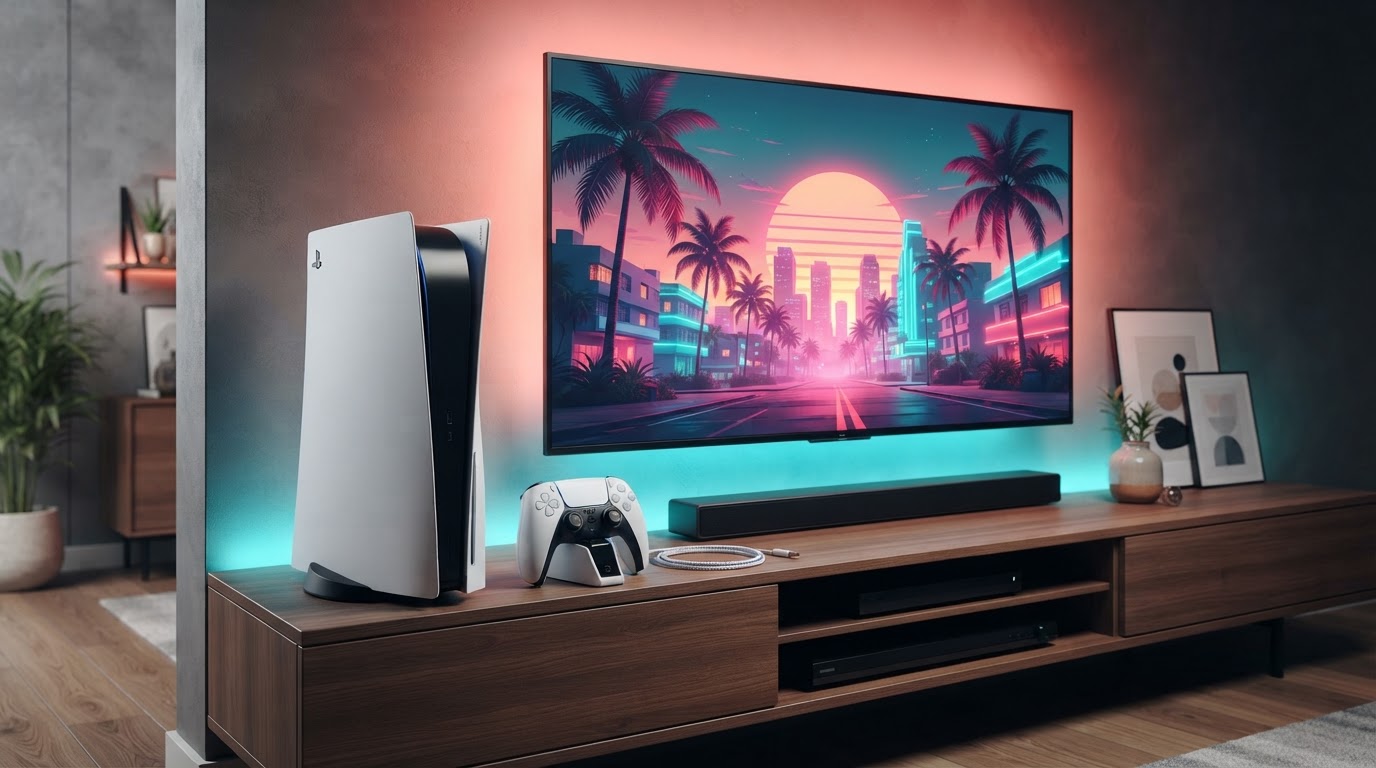
Quick fix: If GTA VI looks gray, too dark or washed out on PS5 or Xbox, first check Pause Menu → Settings → Display → HDR Calibration, then verify the console and TV agree about HDR. Rockstar’s own HDR support guidance recommends checking HDMI compatibility, HDR support, Game Mode and dynamic tone mapping. A poor picture does not by itself prove a GTA VI software bug.
Step 1: recalibrate HDR inside GTA VI
- Pause the game and open Settings → Display.
- Confirm HDR is enabled if your display supports it.
- Open HDR Calibration and follow the on-screen prompts in a normally lit room.
- Check the same bright outdoor scene and a darker interior after calibration. Avoid raising brightness so far that black objects turn gray or highlights lose detail.
- Use the game’s Restore Default option if you are not sure which adjustments caused the problem.
Step 2: check your PS5 or Xbox HDR configuration
Your console’s HDR output must match the display. On PS5, visit the system’s screen/video configuration and follow PlayStation’s HDR setup guide. Xbox Series users should use the console’s TV/display options and Xbox’s 4K and HDR support. Re-run console HDR calibration if you change displays, HDMI ports or picture modes.
Step 3: adjust the TV, not just the game
- Confirm that the current HDMI port actually supports HDR and any required enhanced/Deep Color input mode.
- Use a suitable HDMI cable for the console and display connection; Rockstar’s general guidance calls for HDMI 2.1-capable hardware where applicable.
- Try your TV’s Game Mode preset.
- Turn off automatic image enhancement that can constantly shift the brightness or color balance.
- If your display supports HGIG, compare it with the TV’s dynamic tone-mapping mode; Rockstar recommends disabling dynamic tone mapping when troubleshooting.
Why the image may look different from trailers
A compressed trailer, a phone screen, SDR video and a calibrated HDR television do not show the same brightness and color range. Compare conditions on the same display and game scene rather than diagnosing a fault from a screenshot. If only certain dark areas look hard to see, revisit HDR calibration before changing unrelated controller settings.
Still washed out after calibration?
Test a second HDR game and verify your television’s settings. If other content also looks wrong, investigate the TV/console connection first. If only GTA VI is affected, document the console model, display model, settings and game build before contacting Rockstar Support. Do not delete saved game data as a picture-quality fix.
Frequently asked questions
Is HDR Calibration actually in GTA VI?
Yes. The published PS5 settings walkthrough identifies it within the Display tab, and Rockstar officially confirms the Display settings category. Exact control labels can differ by platform or update.
Should I just turn HDR off?
Temporarily comparing SDR versus HDR can help isolate the problem; it is not proof that GTA VI’s HDR implementation is broken.
Sources: Rockstar HDR troubleshooting, Rockstar GTA VI settings, and GTA VI PS5 menu reference.