
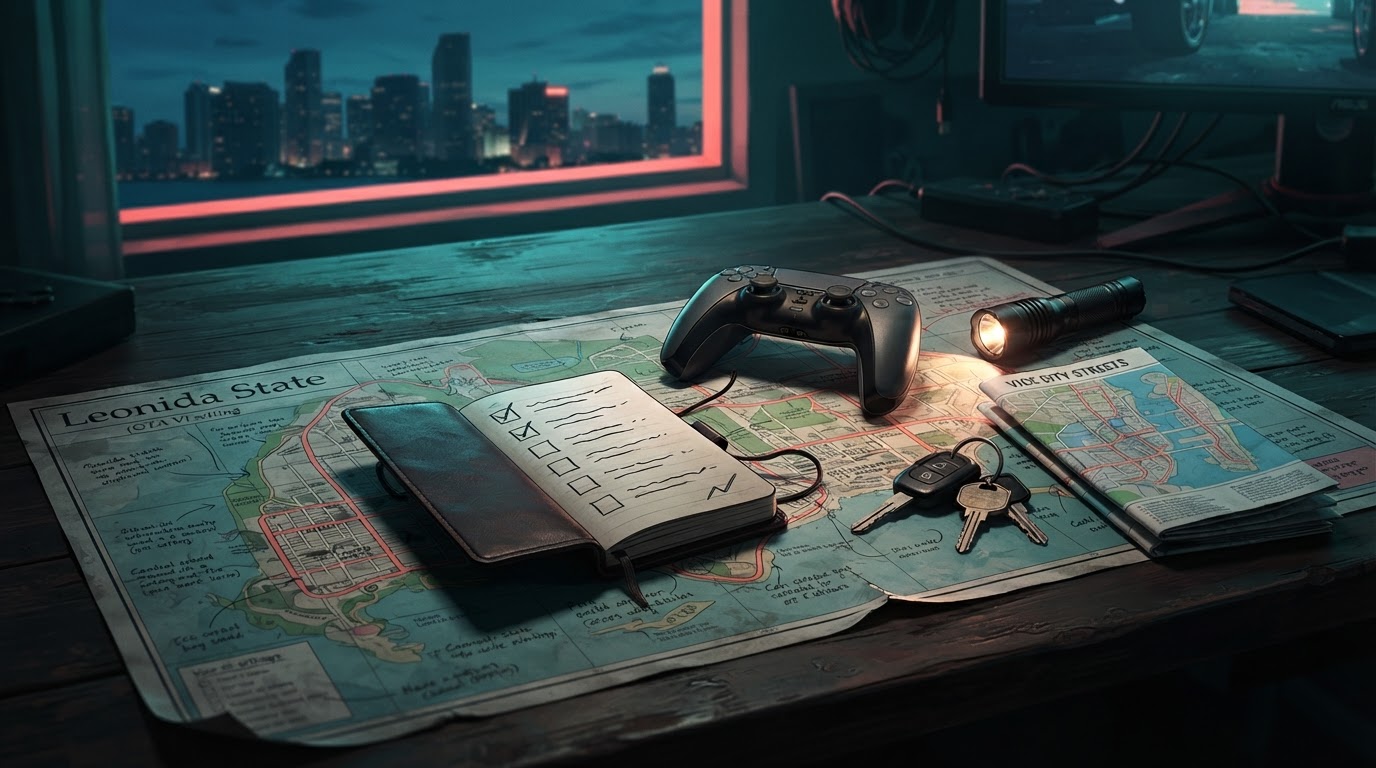
November 20: save integrity checklist after a crash or experiment
Before doing a mission, exploit or camera glitch: Keep at least one separate clean manual save. GTA VI supports manual saving and autosaving, but an autosave may not protect every optional action, collected item or short outing. A post-crash missing objective does not necessarily mean every save is gone.
Recovery sequence: (1) Stop before starting another mission or making additional saves. (2) Open Load Game and compare slot names, story state and timestamps. (3) Check the last autosave against earlier manual slots. (4) On Xbox, allow normal save synchronization but do not choose delete-everywhere or overwrite a more useful cloud state without verifying timestamps. (5) On PS5, investigate available console/cloud backups using the correct account. (6) If progress cannot be recovered, record the game version and report the issue without claiming the data can definitely be reconstructed.
Cheat warning: PowerPyx and PC Gamer report that activating a GTA VI cheat disables further saving/trophies in that session. Do not use a cheat to attempt permanent money generation or progression. The cheat guide distinguishes intended post-story cheats from save/reload exploit reports.
Sources: PC Gamer cheats · PowerPyx restrictions. This site cannot guarantee recovery of deleted or overwritten files.
November 19 update: what to do if a crash makes progress disappear
Some PS5 and Xbox players report losing progress after crashes or unexpected shutdowns, but Rockstar has not confirmed a single cause. Before starting a new game or saving again, inspect the Load Game menu for the autosave and most recent manual slot. According to a November 19 report, the autosave can be easier to find under Load Game than where users expect it in Save Game. Do not delete console save data or replace cloud copies without comparing timestamps. Our dedicated lost-progress recovery guide explains the cautious steps for PS5 and Xbox, and what is not yet a confirmed fix.
New mission save warning: limited-time quests and the Recalibration transition
PowerPyx reports that GTA VI does not offer a conventional mission replay menu and that some optional objectives disappear with time or story progress. Keep at least one manual save early in each chapter if you want to revisit choices or one-time pickups. This is distinct from its reported ability to revisit the finale after the credits.
Before Recalibration, save separately and review your carried cash, starting home and Chapter 1 side activities. Some optional quests, such as Shirley’s rum and scooter errands, expire at an earlier mission boundary. See the story directory for neighboring missions.
Sources: PowerPyx mission list, Recalibration warning, and Kotaku postgame report. Do not overwrite your only manual save while experimenting.
Quick answer: GTA VI supports 15 manual save slots and one autosave slot, according to PowerPyx’s November 18 released-game roadmap. A firsthand Finger Guns PS5 review confirms that the pause screen contains Save and Load options. PowerPyx also warns that activating GTA VI cheats disables saving and trophies for the affected session. Before experimenting with cheats or missing a point-of-no-return opportunity, make a permanent manual save and avoid overwriting your only safe checkpoint.
How to make a manual save
- Pause the game using the console’s normal pause/options control. Finger Guns confirms the game’s actual pause screen rather than a map-only interface.
- Open Save or the Save/Load section in the pause menu.
- Choose a slot for the new save. If you are returning to a chapter checkpoint, pick a different slot rather than overwriting your only earlier save.
- Wait for the save operation to complete and verify the time or slot entry before closing the menu.
- When you want to return, use the nearby Load option and check the selected slot carefully; loading a prior save can discard progress made afterward.
The menu categories above are supported by an early firsthand review, while slot counts come from a specialist published roadmap. Exact Xbox versus PS5 wording can vary by platform and version; we have not personally recorded the final controller-by-controller sequence. If the game warns that saving is unavailable, don’t assume the storage device is broken before checking cheats or an active scripted sequence.
Manual save versus autosave: what is safer?
| Save method | Best use | Limitation |
|---|---|---|
| 15 manual save slots | Chapter checkpoints, experiments, optional mission forks, missable trophy protection | You can overwrite a slot; keep backups deliberately |
| 1 autosave slot | General play continuity as the game automatically records progress | May roll forward and overwrite the previous state; not a substitute for old chapter backups |
| PS5/Xbox cloud save synchronization | Protects local saved data against some device problems where supported | Account, version and subscription/connection terms vary; a cloud sync may also mirror unwanted overwrites |
Why cheats can stop saving and trophies
PowerPyx’s GTA VI cheat guide and roadmap both report that using cheats disables manual saving and trophy/achievement progress. That is more serious than a harmless visual effect: if you want permanent progress, save first and use a separate sandbox session. We do not independently claim that restarting, reloading or entering a different cheat always restores trophy eligibility; follow a verified in-game notice and test conservatively rather than risk your main file.
- Create a separate normal manual save before testing any cheat.
- Do not overwrite the clean slot after cheats have been enabled.
- If you see a saving or achievement-disabled prompt, treat it as real; don’t force a cloud sync or delete saved files.
- For trophy work, reload the clean pre-cheat save and verify achievement eligibility from the actual console interface rather than trusting social-media tips.
Recommended chapter-by-chapter backup plan
The published trophy roadmap recommends reserving ten saves: one near the start and another near the end of each of five chapters, leaving five rotating slots for experiments and clean-up. That may sound excessive, but PowerPyx says GTA VI has no mission replay. Even if an ending isn’t needed for a trophy, losing a chance to revisit a story beat can cost time. Our Platinum trophy guide flags a potentially missable Chapter 1 meditation condition.
Why is GTA VI not letting me save?
- Cheats: this is a documented cause according to the published trophy guide.
- In-progress mission or scripted moment: wait until the game returns full menu control and try again; do not claim a particular story scene is bugged without evidence.
- Storage or account errors: check console free space, the profile you are signed into and any error message before reinstalling.
- Save files missing after license change: an entitlement lock is not proof your saves were erased. See our PlayStation save-versus-license explainer for the platform distinction.
- Cloud sync conflict: review the dates and account carefully; don’t choose an older or newer cloud file blindly. Seek official support when the exact console error persists.
Does GTA 6 offer mission replay?
The November 18 PowerPyx roadmap states there is no mission replay and that free roam continues after the story. That makes your own manual files important. Never claim that the absence of a mission-replay option prevents all optional activity cleanup: the 100% checklist is reported to remain completable after the credits, even though individual story moments may no longer be replayable.
Sources and limits
- PowerPyx: 15 save slots, autosave, mission replay, cheat restrictions
- PowerPyx: released-game cheat reporting
- Finger Guns: firsthand pause/save/load interface
Checked November 18, 2026. Reported save counts and cheat restrictions come from a named guide publisher; menu existence is independently described by a critic. No firsthand console save corruption experiment was performed. This merges two overlapping article proposals into one durable guide.
Continue exploring
Return to the Leonida Scene homepage, visit Getting Started, or browse Verified Updates. All specific gameplay instructions are subject to editorial verification.